> For the complete documentation index, see [llms.txt](https://hlddocs.lookingglassfactory.com/llms.txt). Markdown versions of documentation pages are available by appending `.md` to page URLs; this page is available as [Markdown](https://hlddocs.lookingglassfactory.com/content-pipelines/creating-videos-with-genai.md).
# Creating videos with GenAI
Modern generative AI tools enable new forms of content creation for Hololuminescent displays.
Turn ideas or photos into cinematic, holographic-ready videos using [**Google AI Studio**](https://aistudio.google.com/) and Gemini’s **Nano-Banana** (AKA 2.5 Flash Image) and **Veo 3.1** models.\
This guide walks you through how to:
* Adapt a **photo** into an HLD-ready video
* Create a **new image entirely from text** then animate that image into a short, realistic video for the HLD.
While we'll be using [Google's AI Studio](https://aistudio.google.com/) for this tutorial, the same process is possible in a variety of other tools if you adapt the core logic.
## Overview
To create an HLD-style video, use **Gemini’s image and video generation tools** in [Google AI Studio](https://aistudio.google.com/) in this order:
1. Style or image generation (Nano-Banana)
* Upload a subject image *or* describe it in text
* Include our reference image to guide lighting and composition
2. Video generation (Veo 3.1)
* Animate your resulting image into an HLD-ready video
The output is:
* 1080×1920 (9:16 portrait)
* 24 fps with native audio
* MP4
## What you’ll need
* A **Google account**
* Access to **Google AI Studio**
* Either:
* A **subject image** (person or product)
* **or** a **text prompt** describing what you’d like generated
* Our **reference image** — defines the environment, lighting, or style you want the subject to match
{% columns %}
{% column %}
Reference image if you're making a product video for the HLD:
{% file src="/files/Qg3lIkf5rU4whuUCcx2M" %}
{% endcolumn %}
{% column %}
Reference image if you're making a person or character video for the HLD:
{% file src="/files/OgXqwJh4ftEY1hsWWtJV" %}
{% endcolumn %}
{% endcolumns %}
## Step 0: Set up Google AI Studio
Before you generate images or videos, make sure your Google account has access to **Google AI Studio** and (optionally) that billing is enabled for **pay-as-you-go** usage of the Gemini API.
1. Choose the account you’ll use
1. **Personal Google accounts**: You can open AI Studio and start prototyping immediately. No admin approval is required.
2. **Google Workspace (work/school) accounts**: AI Studio is **on by default**, but your Workspace admin can turn it on/off per OU or group. If you see an “access disabled” message, contact your admin.
{% hint style="info" %}
**Admin guidance (Workspace):** In the Admin console, go to **Apps → Additional Google services → AI Studio → Service status** to enable it for everyone, an OU, or an access group. (Domain verification is required to manage additional services.) See more on [Google Help](https://support.google.com/a/answer/15004095).
{% endhint %}
2. Check regional & age availability
1. AI Studio and the Gemini API are available [in most countries/regions](https://ai.google.dev/gemini-api/docs/available-regions); if you’re outside a supported region, use Vertex AI instead. Minimum age is 18.
3. Sign in to AI Studio & create an API key (optional but recommended)
1. To connect your projects and tasks to your billing setup, you need an API key. You can create one in the [Google AI Studio dashboard](https://aistudio.google.com/u/1/api-keys).
4. (Optional) Enable billing for pay-as-you-go & higher limits
1. You can build on the **free tier** or upgrade to **pay-as-you-go** for higher rate limits and different data-use terms.
2. Open **Settings → Plan information** and click **Set up Billing** for your project; you’ll be guided to link a **Google Cloud Billing** account.
## Step 1: Generate or adapt an image with Nano-Banana
Once you're signed in and set up in Google AI Studio, you can start creating content.
### Option A: Adapt an existing image
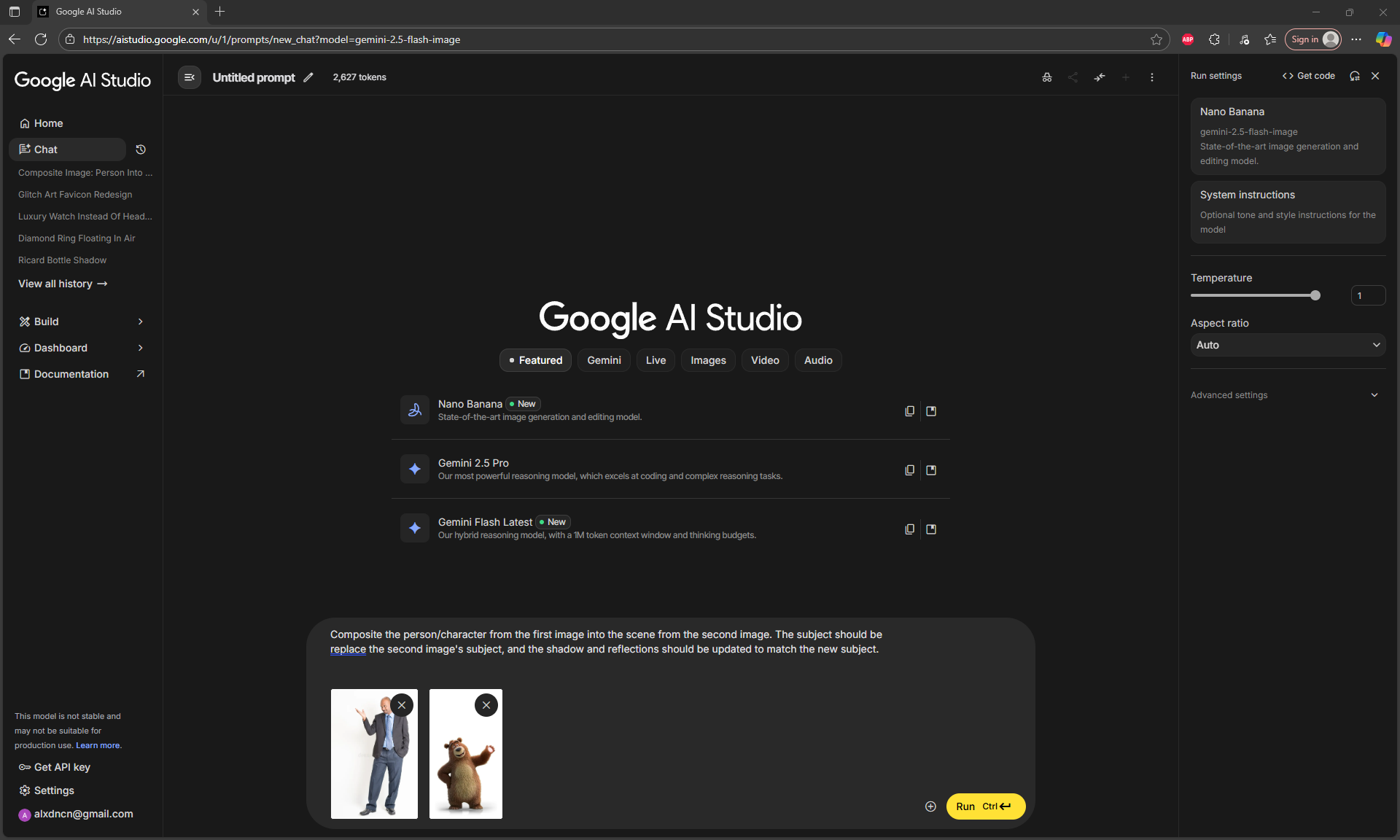
1. Open image generation
1. Go to AI Studio.
2. Select **`Try Nano Banana`**.
2. Upload your files
1. First image: your subject (person/character or product)
2. Second image: the reference image
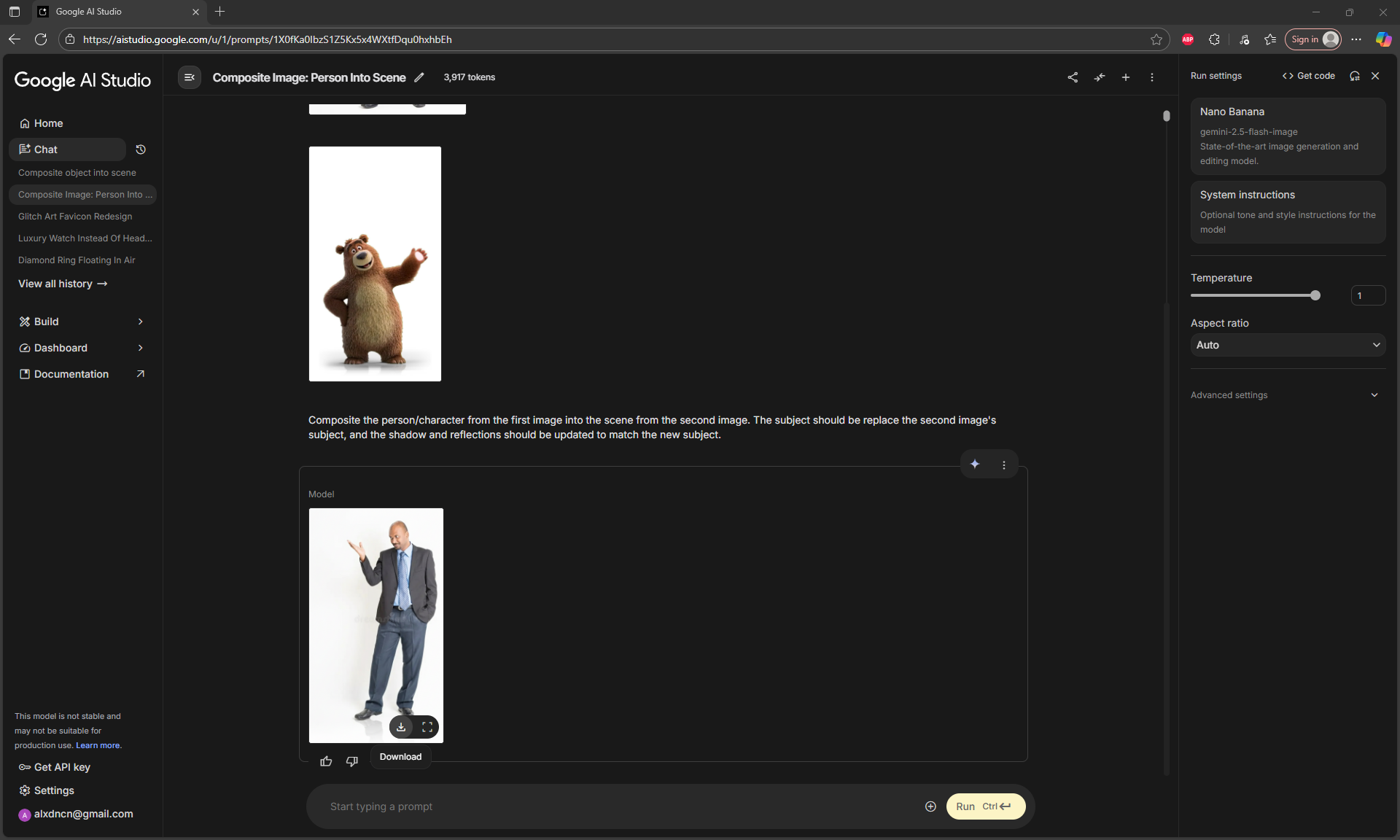
1. Use the bear for a person/character
2. Use the headphones for a product
3. Add a prompt
1. For a person/character, use our default prompt:
**🧍** Person Flow
> Composite the person/character from the first image into the scene from the second image. The subject should replace the second image's subject, match their height and feet placement, and the shadow and reflections should be updated to match the new subject.
**📦** Product Flow
> Composite the object from the first image into the scene from the second image. The object should be replace the second image's object, and the shadow should be updated to match the new object.
4. Generate and download
1. Click **Run** and wait about 5–30 seconds.
2. Download your **style-adapted image** — this will be the base for your video.
### Option B: Generate a new image from text
You can also skip uploading a subject image and describe what you want instead.
1. Open image generation
1. Go to AI Studio.
2. Select **`Try Nano Banana`**.
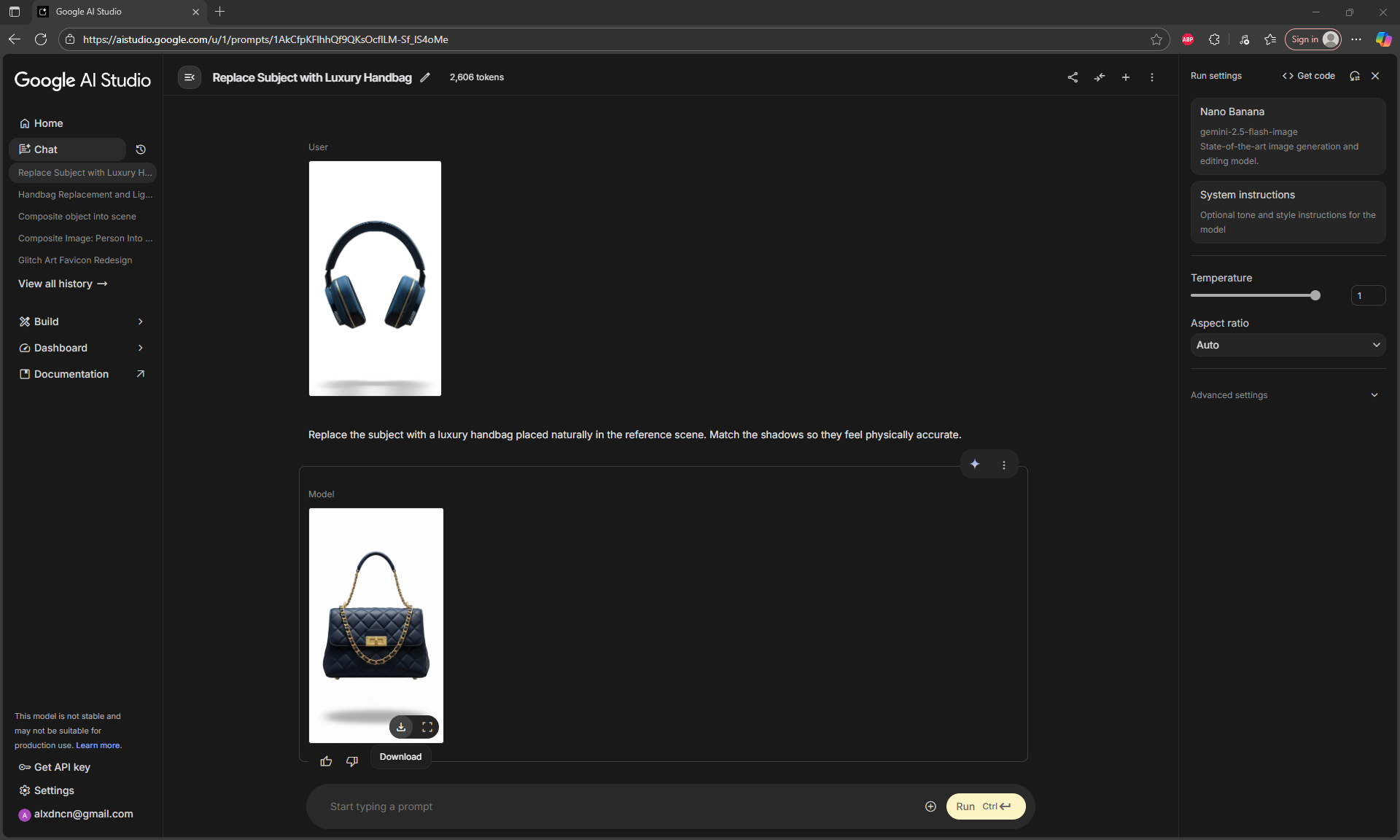
2. Upload only the reference image
1. This sets the background, lighting, and style.
3. Enter a text prompt
1. Example:
> Replace the subject with a luxury handbag placed naturally in the reference scene. Match the shadows so they feel physically accurate.
4. Generate and download
1. Gemini will create a **new image** based on your description, blending it into the reference scene. Download this image — it’s now ready for video generation.
## Step 2: Animate with Veo 3.1
1. Open video generation
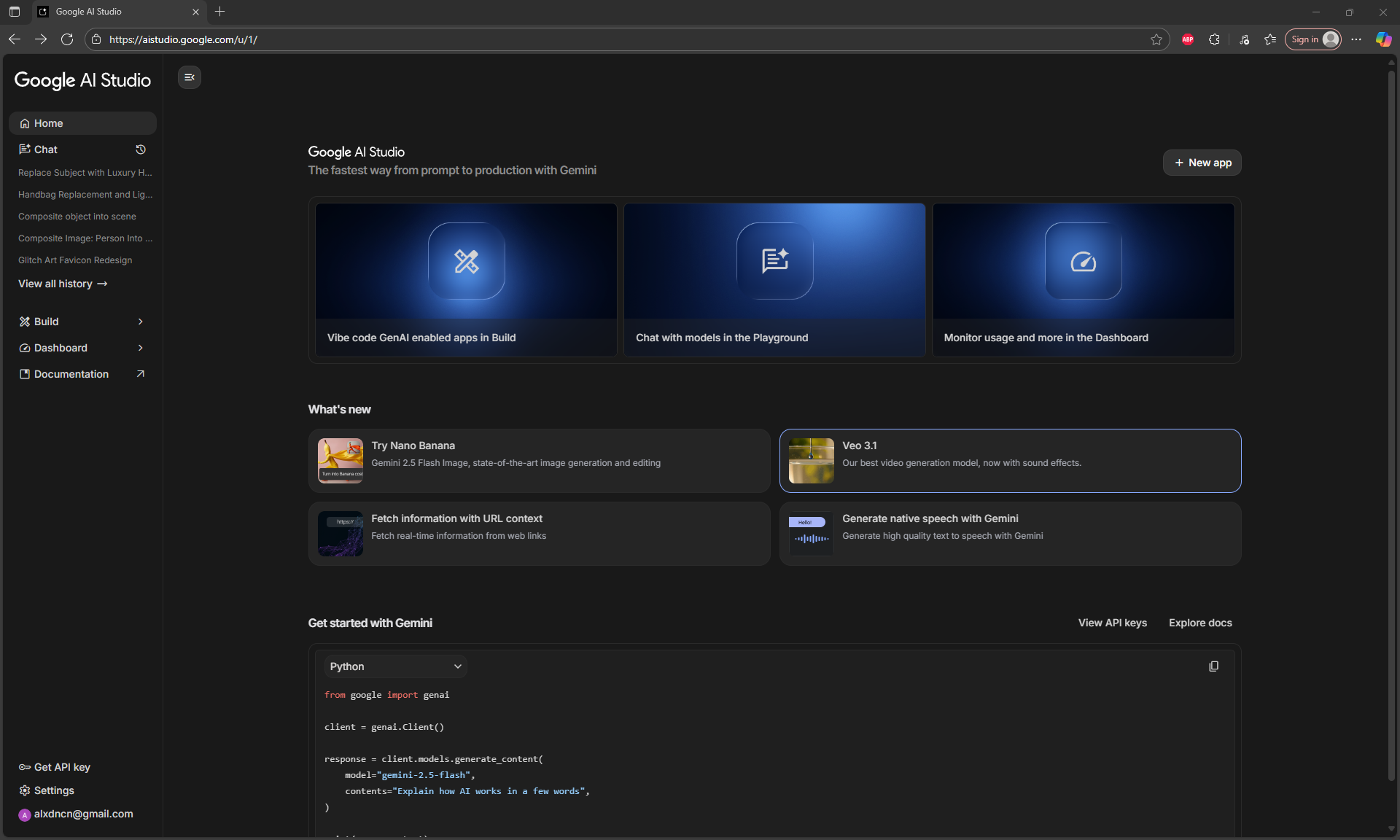
1. In AI Studio, select the "Home" button.
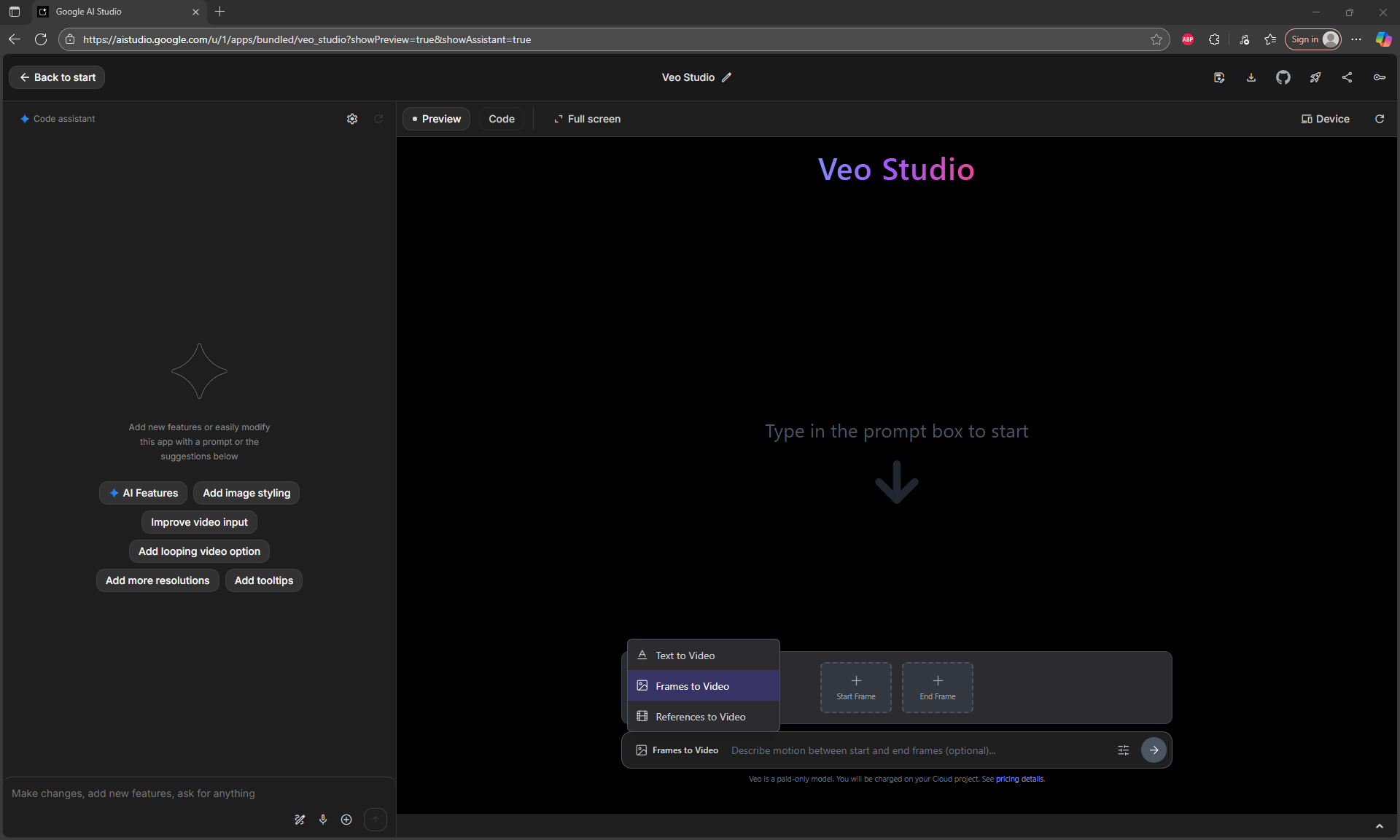
2. Choose the **`Veo 3.1`** from the home screen menu.
2. Select "Frames to Video" instead of the default "Text to Video"
3. Upload the style-adapted or generated image from Step 1
1. This is the image you just created with Nano-Banana.
2. If you're doing a video of a **product**, we recommend setting the image as the **start and end frame.**
3. If you're doing a video of a **person**, just upload the image as the start frame.
4. Select settings
1. Model: `veo-3.1-generate-preview` for highest quality results
2. Aspect Ratio: Portrait (9:16)
3. Resolution: 1080p for best results
5. Add your prompt
**🧍** Person flow
> A natural, engaging video of the person speaking directly to camera. Subtle movements and natural expressions, static camera, realistic lighting.
**📦** Product flow
> A smooth, professional 360-degree rotation of the product. The object slowly spins clockwise when viewed from the top, showcasing it from all angles. The product remains centered and in perfect focus throughout the rotation, and the camera doesn't move.
6. Generate and download
1. Click **Run**. Veo 3.1 will render the video in 1–5 minutes.
2. Download the **MP4** — it’s ready for playback on HLD displays.
## Previewing and exporting for HLD playback
Once you’ve exported your video, we recommend opening it in [**HLD Author**](/apps-and-tools/hld-author.md).
HLD Author lets you:
* Adjust framing, rotation, chroma key, and shadows
* Preview your content on a simulated Hololuminescent Display
* Export the correct MP4 for the included [HLD Demo Media Player](/managing-content/using-the-demo-media-player.md), BrightSign, or standard portrait-video playback
HLD Author can also create animated or depth-treated output from still images and render supported 3D media. It is the easiest way to confirm framing, depth, and orientation before deployment.
## Output specs
| Property | Value |
| ---------------- | ----------------------- |
| **Aspect Ratio** | 9:16 (portrait) |
| **Resolution** | 1080 × 1920 |
| **Duration** | 8 seconds |
| **Frame Rate** | 24 fps |
| **Audio** | Native (auto-generated) |
| **Format** | MP4 |
| **Watermark** | SynthID (automatic) |
## Tips for Best Results
* Use **bright, evenly lit** subject photos.
* Match the **lighting direction** between subject and reference, if possible.
* Use **9:16 images** whenever possible.
* Keep prompts **concise** but **specific** — mention the mood, camera behavior, and lighting style.
* **Avoid cluttered backgrounds** in the input image.
* Use images with **clear separation** between foreground and background.