> For the complete documentation index, see [llms.txt](https://hlddocs.lookingglassfactory.com/llms.txt). Markdown versions of documentation pages are available by appending `.md` to page URLs; this page is available as [Markdown](https://hlddocs.lookingglassfactory.com/managing-content/brightsign-digital-signage-player.md).
# BrightSign digital signage player
Deploying HLD content to your BrightSign player with "brightAuthor connected"
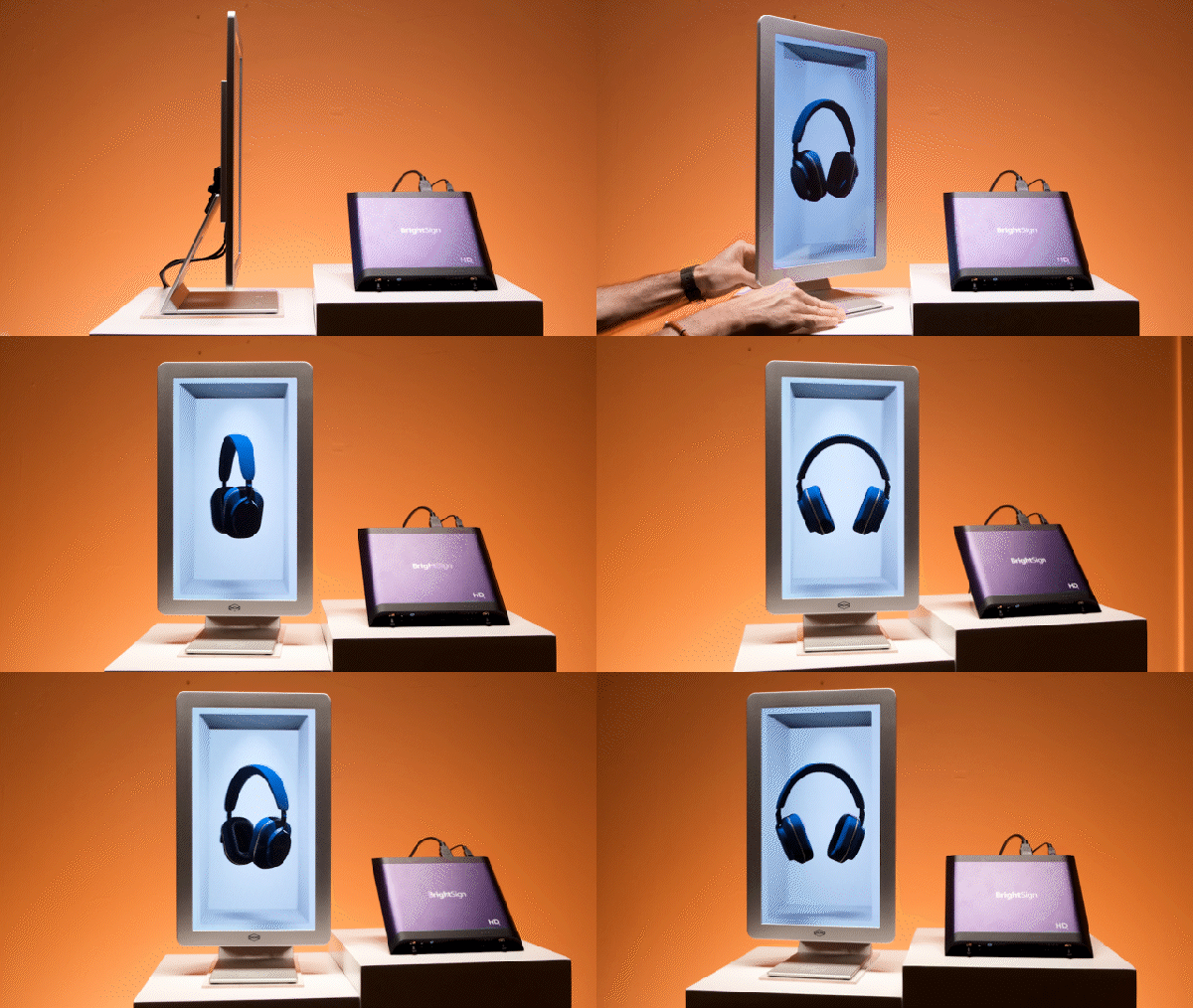
Hololuminescent Displays include a built-in demo media player that’s useful for product demos and basic playback. However, for professional digital-signage deployments — especially where reliability, scheduling, and fleet management matter — we recommend using a dedicated signage platform.
[BrightSign players](https://www.brightsign.biz/brightsign-players/series-6/) are a common choice for production deployments with HLDs. They are widely used in museums, retail, corporate environments, and other always-on installations.
This guide walks through a **basic Standalone deployment** using **brightAuthor connected** and an SD card. It is intended as a practical starting point, not a comprehensive BrightSign manual. BrightSign supports multiple deployment modes (Standalone, Local Network, BSN.Cloud, etc.) and many advanced features.
For full setup instructions and alternative workflows, refer to [BrightSign’s official documentation](https://docs.brightsign.biz/start-here).
## What this tutorial covers
* Creating a simple BrightAuthor presentation for an HLD
* Configuring video output settings correctly for playback
* Publishing content to a BrightSign player via SD card (Standalone mode)
## What this tutorial does *not* cover
* Detailed BrightSign player provisioning
* Networked or cloud-managed deployments
* Advanced scheduling, interactivity, or scripting
For instructions on what this tutorial does *not* cover, refer to [BrightSign’s official documentation](https://docs.brightsign.biz/start-here).
## Requirements
Before you begin, you’ll need:
* A **BrightSign player** compatible with 4K60 output
* An **HLD** connected to the BrightSign player
* An **SD card** (inserted into your computer for Standalone deployment)
* A **BrightSign account** (BSN.Cloud)
* **brightAuthor connected** installed on your computer
For initial hardware setup, see [BrightSign’s Quickstart Guide](https://docs.brightsign.biz/player-quickstart).
## Step-by-step guide
{% hint style="warning" %}
This guide assumes you are setting up your BrightSign player in **Standalone mode**. If you are using another deployment method, the below steps may be inaccurate. Refer to [BrightSign’s documentation](https://docs.brightsign.biz/player-quickstart) for the correct setup steps.
{% endhint %}
### Step 1: Setup your BrightSign player
1. Follow [BrightSign's documentation](https://docs.brightsign.biz/standalone-setup) to set up your player as a Standalone device.
### Step 2: Install brightAuthor connected
1. Create or sign in to your [**BSN.Cloud**](https://bsn.cloud/) account.
2. Download and install **brightAuthor connected** from BrightSign — link [here](https://www.brightsign.biz/resources/software-downloads/).
3. Login to your BSN.Cloud account in the brightAuthor connected app.
4. Connect your BrightSign player to the HLD via HDMI or DisplayPort.
### Step 3: Create a new presentation
In brightAuthor connected:
1. Create a **new presentation**.
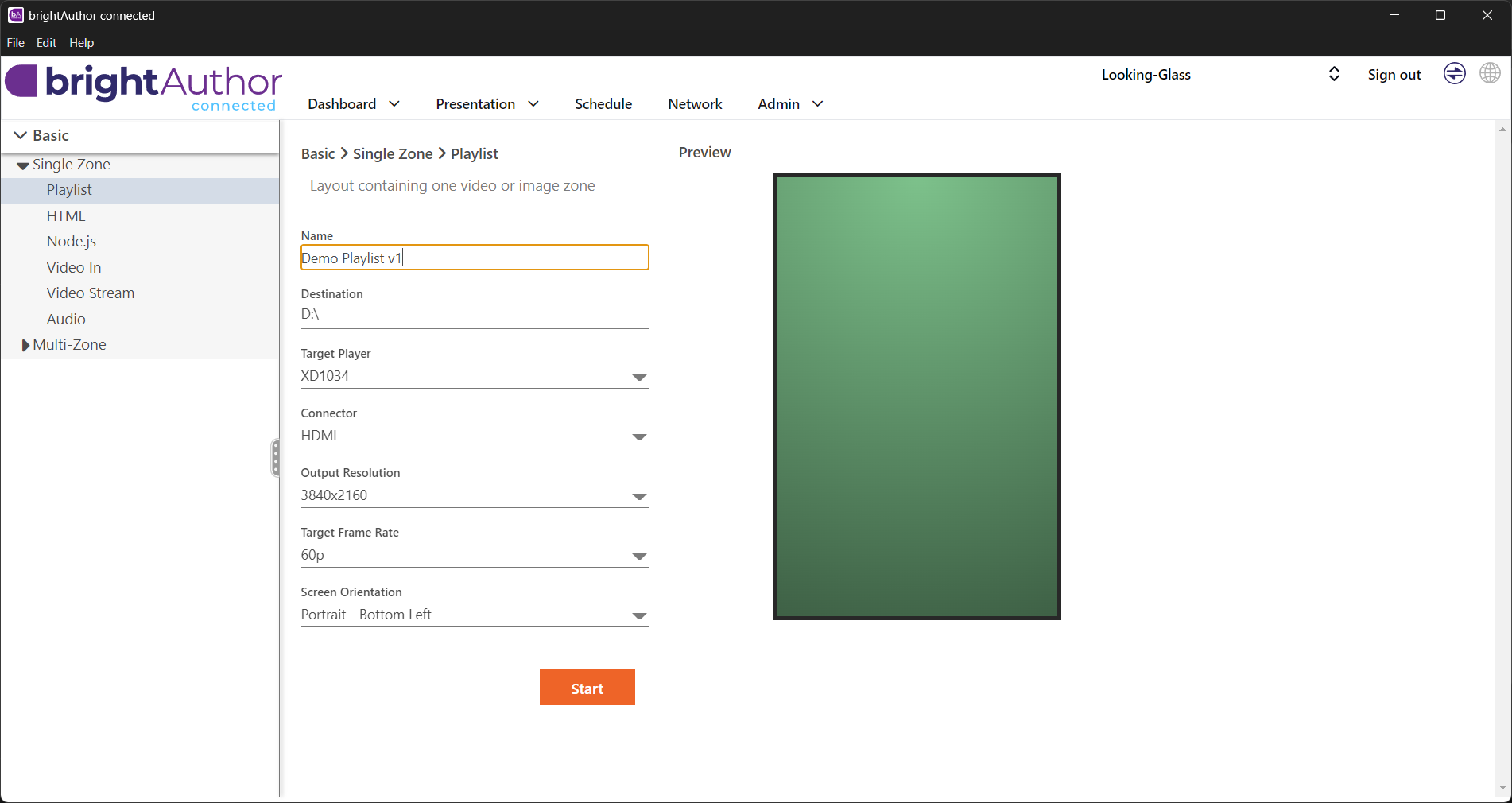
2. Select "Single Zone" → "Playlist" (this should be the default).
3. Set the following presentation settings:
* **Orientation:** Portrait – Bottom Left
* **Destination:** SD Card
* **Resolution:** 4K
* **Frame Rate:** 60 fps
* **Connector:** HDMI (unless you are explicitly using DisplayPort)
4. Give the presentation a clear, descriptive name.
These settings ensure the video output aligns correctly with the HLD’s expected input.
### Step 4: Add your content
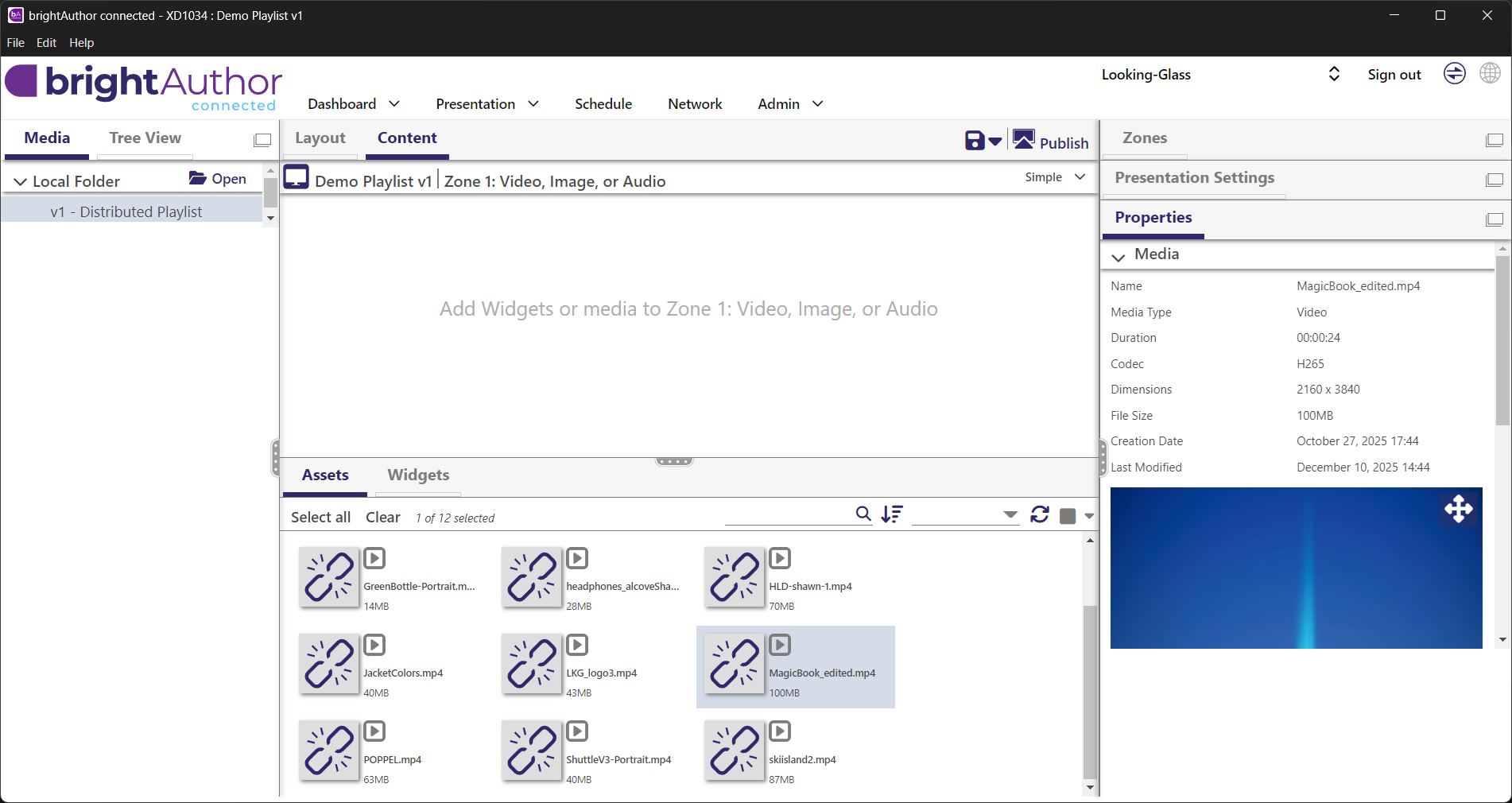
1. Prepare a folder containing **portrait-oriented video files**.
{% hint style="warning" %}
BrightSign should receive standard portrait-oriented video files, not rotated Demo Media Player exports. In the current HLD Author web app, use the **BrightSign** or **General** export target for BrightSign playback. Do **not** send BrightSign an HLD Demo Media Player export, HLD Encoder output, or older HLD Author export. Those files are rotated 90 degrees counterclockwise for the included Demo Media Player and will play back incorrectly on BrightSign.
{% endhint %}
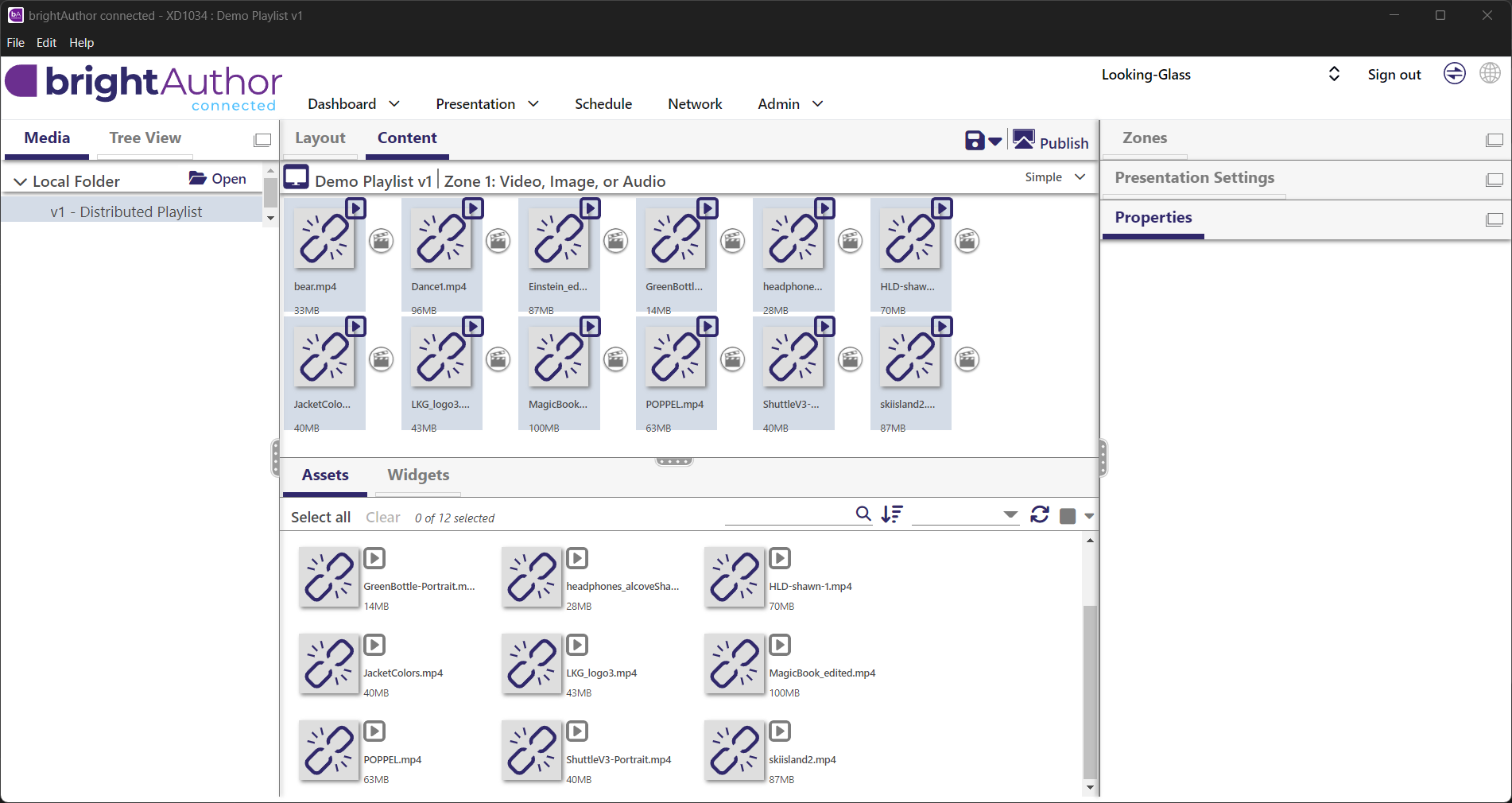
2. In brightAuthor, add this content to **Zone 1** of your presentation.
3. Arrange the playlist as desired.
4. Select "Publish" to go to the publish view for the presentation.
### Step 5: Publish and schedule the presentation
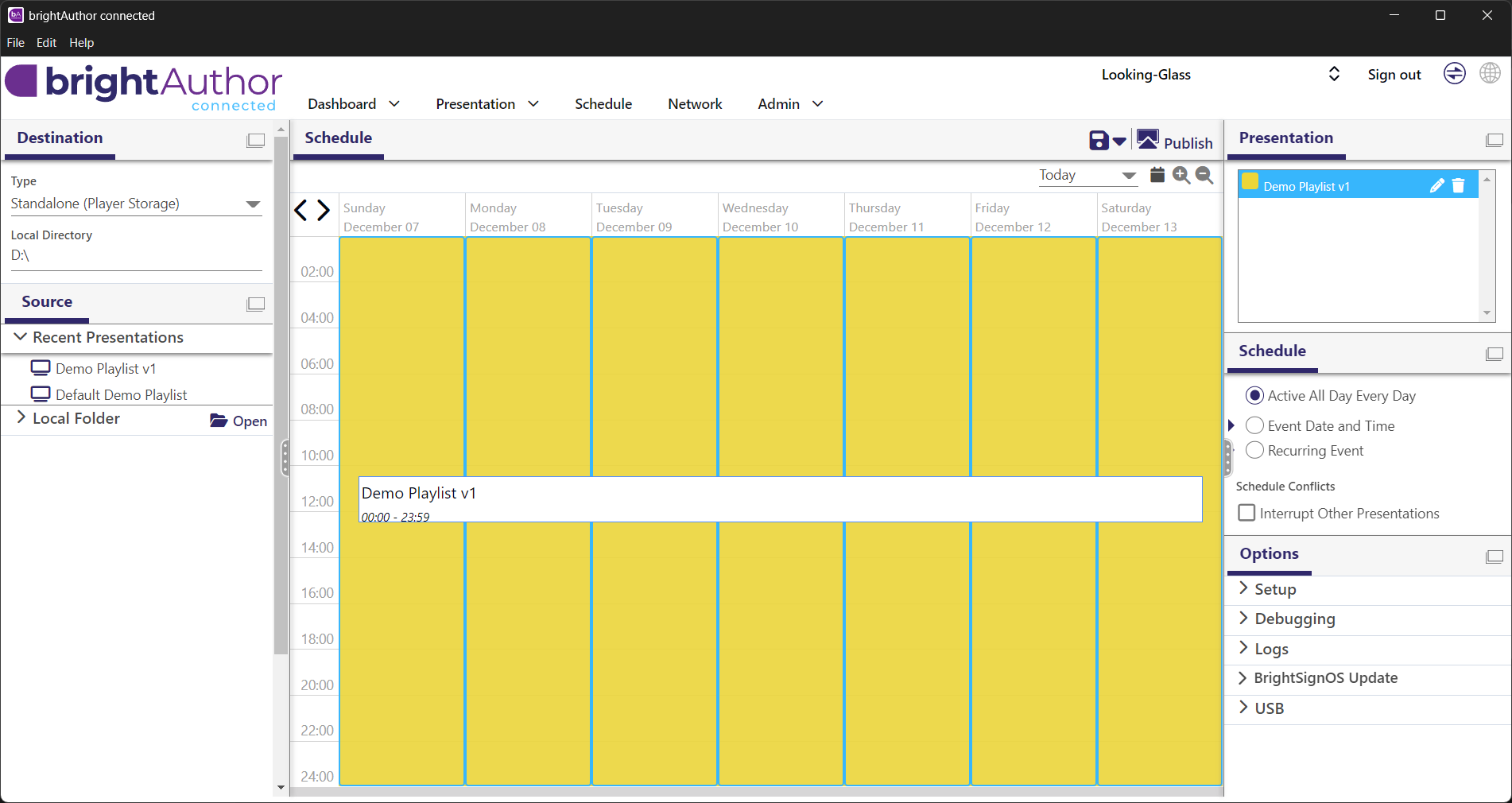
1. Under "Destination", make sure "Type" is set to "Standalone (Player Storage)" unless you are using an alternate deployment mode.
2. Under "Destination", set "Local Directory" to be the location of your inserted SD card.
3. Review the **Schedule** view.
1. You can keep the default schedule to have content **loop continuously**, or adjust timing as needed.
4. Press **Publish** again to apply the schedule.
Once complete, eject the SD card safely and insert it into the BrightSign player. When powered on, the player should automatically begin playback on the HLD.
## Conclusion
And that's it! You're now ready to deploy your HLD with your BrightSign player. This is great for long-term digital signage deployments where stability and content management are paramount.
This tutorial covers only one possible deployment configuration and only scratches the surface of what you can do your BrightSign player. For further information and advanced features, refer to [BrightSign’s official documentation](https://docs.brightsign.biz/start-here).