> For the complete documentation index, see [llms.txt](https://hlddocs.lookingglassfactory.com/llms.txt). Markdown versions of documentation pages are available by appending `.md` to page URLs; this page is available as [Markdown](https://hlddocs.lookingglassfactory.com/content-pipelines/creating-real-time-apps/unity.md).
# Unity
Our Unity templates make it easy to use the latest tech from Unity for interactive apps and immersive video content.
Unity's flexibility allows you to make a variety of applications and immersive experiences for Hololuminescent™ Displays. You can choose between your preferred render pipeline (URP or HDRP) to create interactive applications or videos. Our templates make it easy to stage your own content for use in our Hololuminescent Displays.
## Requirements
* [Unity 6.3](https://unity.com/)
* [Template Projects](https://github.com/Looking-Glass/HLD-Templates/tree/feat/realtime)
* **Operating System:** Windows 11 or MacOS 15+
* **Graphics:** Nvidia RTX 3060, M1 mac or equivalent recommended for best performance
{% hint style="info" %}
### Render Pipelines
To best support your projects, we've provided two distinct Unity Projects to support both the **High-Definition Render Pipeline** and the **Universal Render Pipeline.**
{% endhint %}
## Scene Setup and Components
{% hint style="info" %}
All the files relevant for developing for Hololuminescent™ Displays are located in the `Hololuminescent` folder.
{% endhint %}
### Alcove/Stage
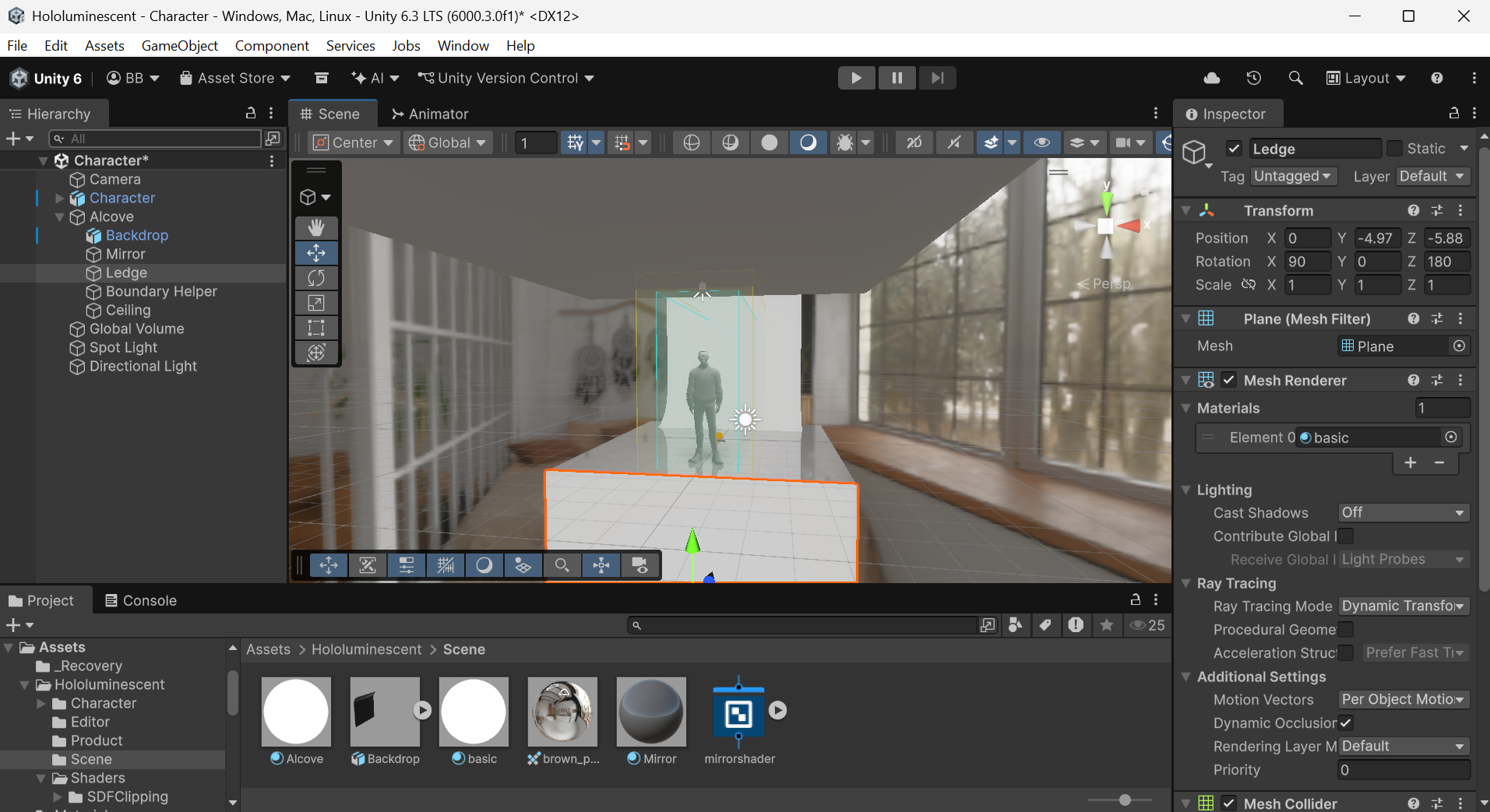
We recommend starting with our `Character` scene in our templates. This scene is setup with our `alcove` prefab and provides proper framing, environment and lighting characteristics that work great on the Hololuminescent Displays.
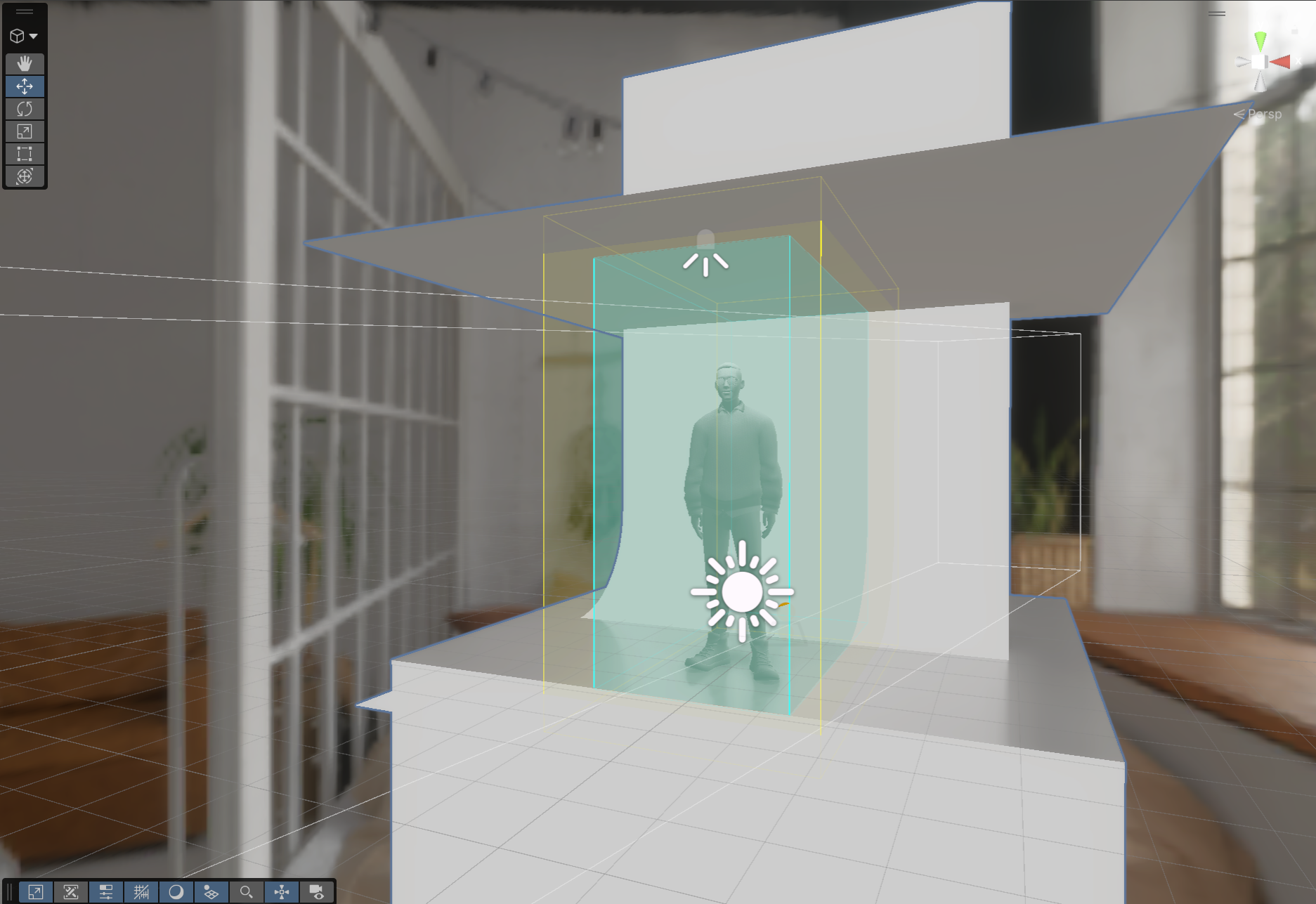
Our HDRP and URP templates have a few key components that make up the alcove prefab, a component designed to give you an easy-to-use stage for your content.
* **Camera:** a standard Unity camera framed to perfectly match the holographic volume of the HLD.
* **Mirror**: a planar reflection setup to have clean, soft reflections.
* **Backdrop**: an unlit backplane provides a clean canvas to allow your content to stand out.
* **Boundary Helper**: an editor gizmo designed to help you frame your content. Ideally your content should remain in the light blue region of the scene, this represents the safe area of your HLD.
* **Ceiling:** in tandem with the planar reflection, keeps the reflection clean and avoids extraneous distraction for light sources or the environment.
* **Ledge:** defines the front bottom ledge of the alcove, this can be used for creative shadow casting effects as seen [here](/resources/demo-video-content.md) on the **Magic Book** demo.
* **Lighting:** the `Alcove` prefab also includes a few lights. By default the scene is setup for soft lighting and soft shadows. You can tweak these to best fit your scene. We recommend taking a look at our creative guidelines for [characters](/creative-guidelines/characters.md) and [products](/creative-guidelines/products.md) when customizing lighting and shadows.
## Scripts
We include a few helpful scripts to make it easy to preview and get your content onto the HLD itself.
* **Alcove/ColorChanger.cs:** a small script to allow you to easily change the color of the alcove, this allows you to more easily theme the whole stage at once for branded experiences.
* **PlanarReflection (URP only):** a script that implements a simple planar reflection for Unity's Universal Render Pipeline.
### **Windowing**
We provide a collection of scripts to make the windowing process simple for HLD systems, whether you're in the editor or running a built version of your application.
* **MultiMonitor.cs:** a script to detect and spawn an in-editor game preview on a connected HLD.
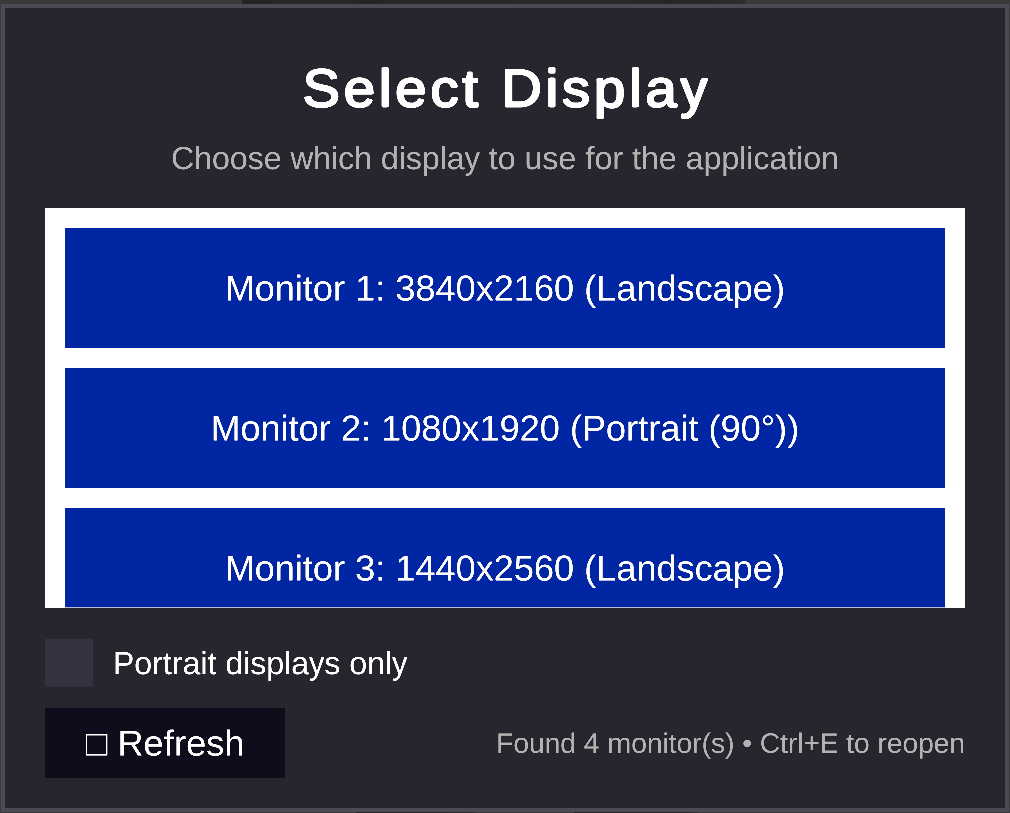
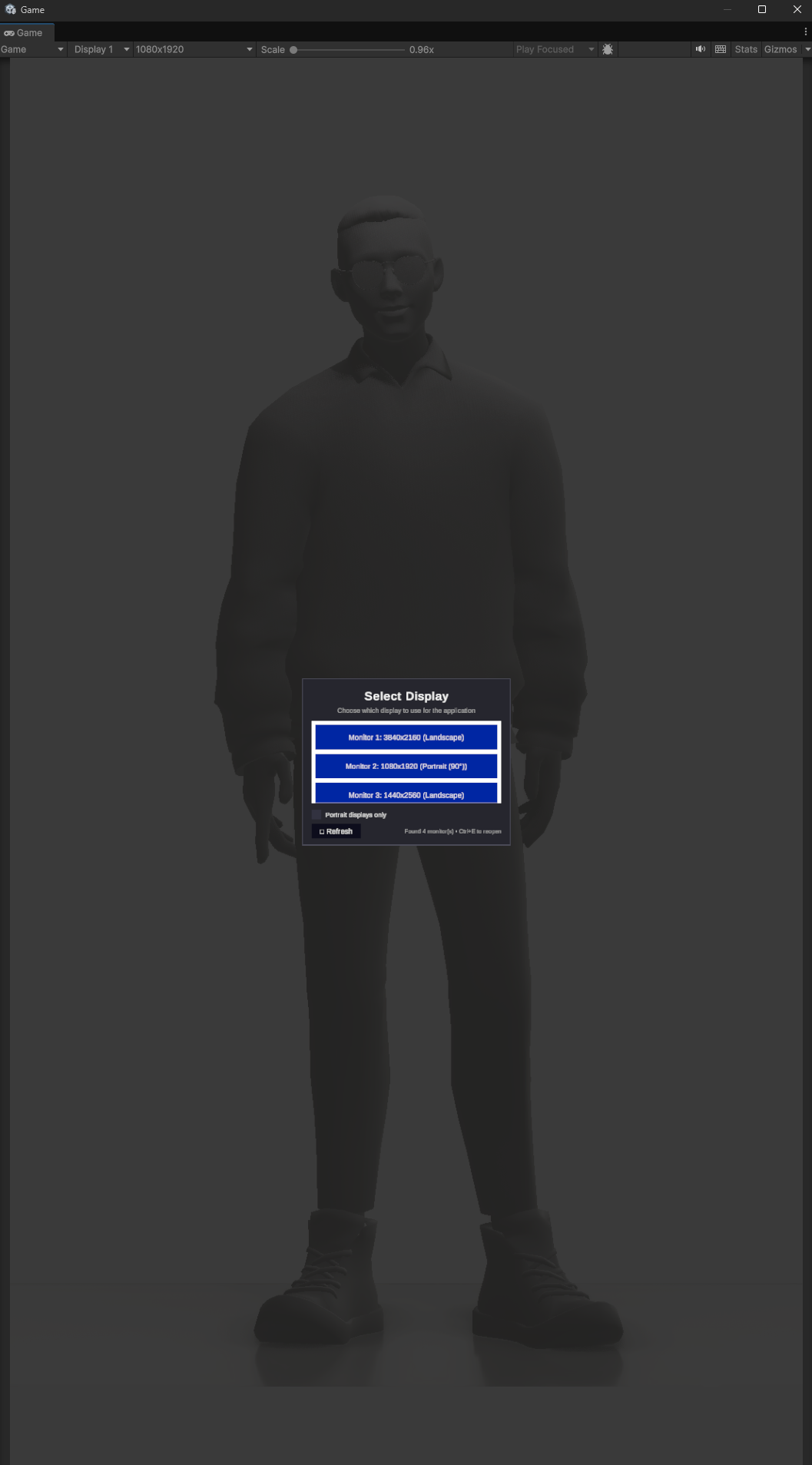
* **MonitorSelectionUIBuilder.cs:** a script that builds a small UI when your application starts, which allows you to set the target monitor to the HLD.
* **MonitorSelectionDialog.cs:** contains the logic for monitor placement and display menu.
* **MonitorSelectionBootstrap.cs:** a script that should be assigned to an empty game object in your scene. This will orchestrate the monitor placement UI.
{% hint style="info" %}
**Keyboard shortcuts**
If necessary you can use Ctrl + E to re-open the monitor selection UI. This allows you to switch the monitor placement in the event a monitor is disconnected while the app is running.
{% endhint %}
## Working in the Unity Editor
**Preview Window**
{% columns %}
{% column %}
To open a preview window directly on your Hololuminescent™ Display, navigate to **`Window->Hololuminescent Display Settings`**
The script will search for connected displays in **`Portrait`** orientation, which in most situations should automatically find your Hololuminescent™ Display.\
\
You can also override this by changing the **`Target Monitor`** field.
{% endcolumn %}
{% column %}
{% endcolumn %}
{% endcolumns %}
## Building your application
Under the file menu in Unity, choose `Build and Run`. This will begin the build process for your app. Once complete, the app will launch, and you'll be greeted with a small UI menu that will list the available monitors.
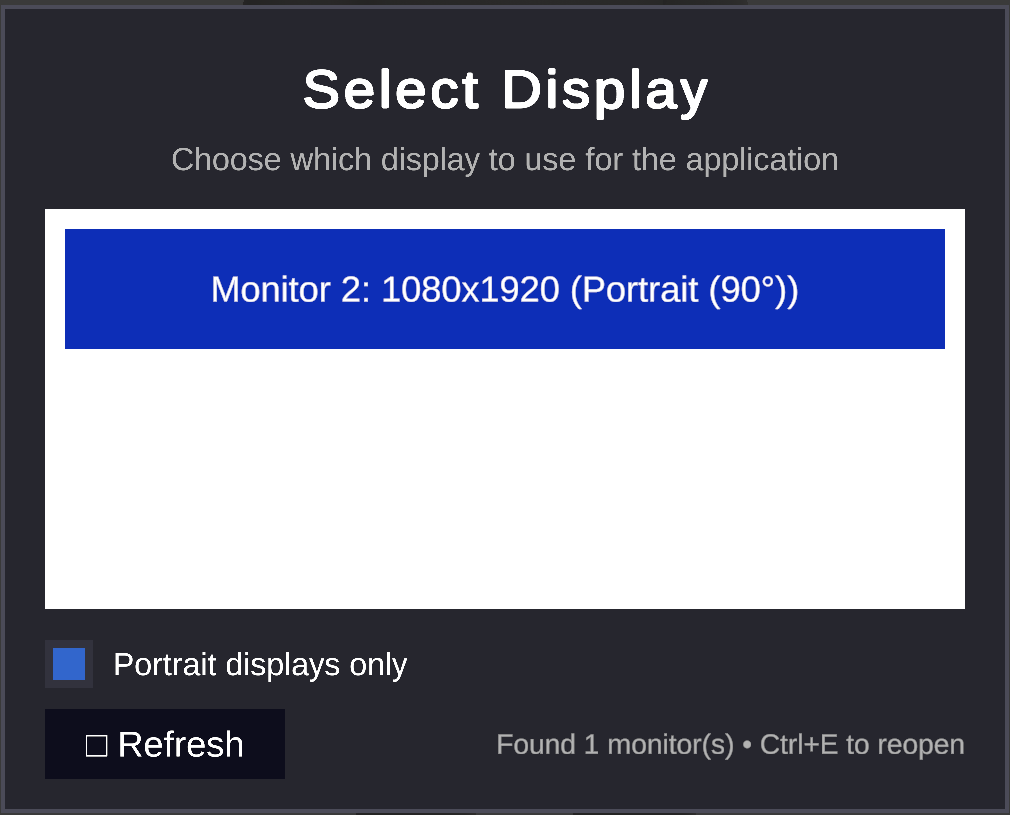
Choosing `Portrait Displays Only` will filter the list to include only portrait-oriented displays, which can be helpful if you have a large number of displays connected.
Once you've located your HLD, select the display from the menu and your build will automatically move to the HLD. If necessary, you can re-open the dialog by hitting `Ctrl + E` on your keyboard.
{% columns %}
{% column %}