> For the complete documentation index, see [llms.txt](https://hlddocs.lookingglassfactory.com/llms.txt). Markdown versions of documentation pages are available by appending `.md` to page URLs; this page is available as [Markdown](https://hlddocs.lookingglassfactory.com/content-pipelines/creating-real-time-apps/unreal.md).
# Unreal
Our template makes it simple to create cinematic quality experiences using the latest technology from Unreal Engine.
Unreal's cinematic toolsets allow you to make high fidelity applications for Hololuminescent™ Displays. We've configured the product configurator template to show how simple it is to bring existing content into the HLD.
## Requirements
* [Unreal Engine 5.6](https://www.unrealengine.com/en-US)
* [Template Project](https://github.com/Looking-Glass/HLD-Templates)
* **Operating System:** Windows, MacOS
* **Graphics:** Nvidia RTX 3060, M4 Mac or equivalent
## Scene Setup and Components
{% hint style="info" %}
Our starting project builds off of Unreal's existing product configurator template, you can learn more about that template [here](https://dev.epicgames.com/documentation/en-us/unreal-engine/product-configurator-template-in-unreal-engine).
{% endhint %}
## Alcove / Stage
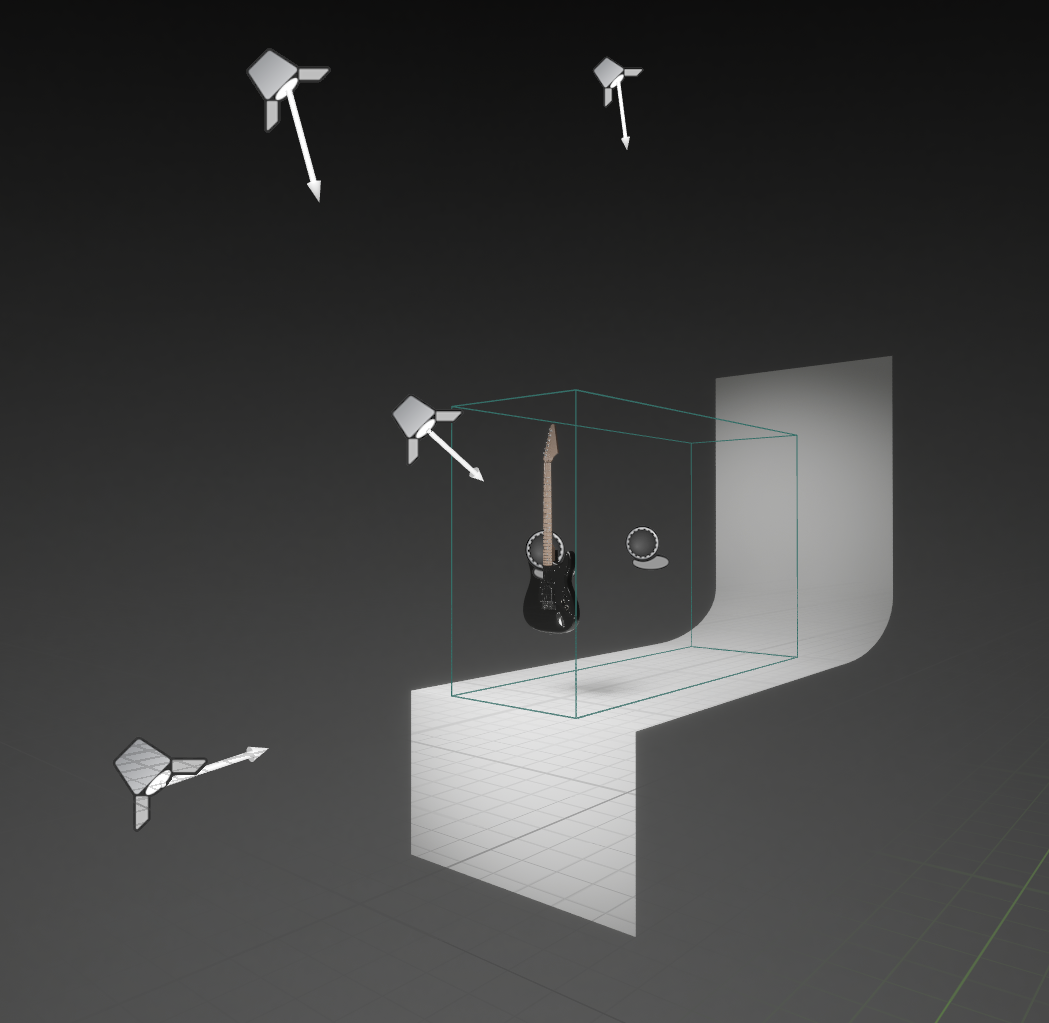
There are a few components that we've provided to make it straightforward to stage your content on the HLD.
* **Camera:** a standard cinematic camera framed to perfectly match the holographic volume of the HLD.
* **Backdrop:** a soft white backplane to allow your content to stand out.
* **Ledge:** defines the front bottom ledge of the alcove, this can be used for creative shadow casting effects as seen [here](https://hlddocs.lookingglassfactory.com/resources/demo-video-content) on the **Magic Book** demo.
* **Safe Area**: a simple gizmo to help you frame your content. Ideally your content should remain inside the volume, this represents the safe area of your HLD.
* **Lighting**: the starting scene includes a handful of spotlights placed to best illuminate your scene. You can tweak these to best fir your products. We recommend taking a look at our creative guidelines for [characters](https://hlddocs.lookingglassfactory.com/creative-guidelines/characters) and [products](https://hlddocs.lookingglassfactory.com/creative-guidelines/products) when customizing lighting and shadows.
#### **Working in the Editor**
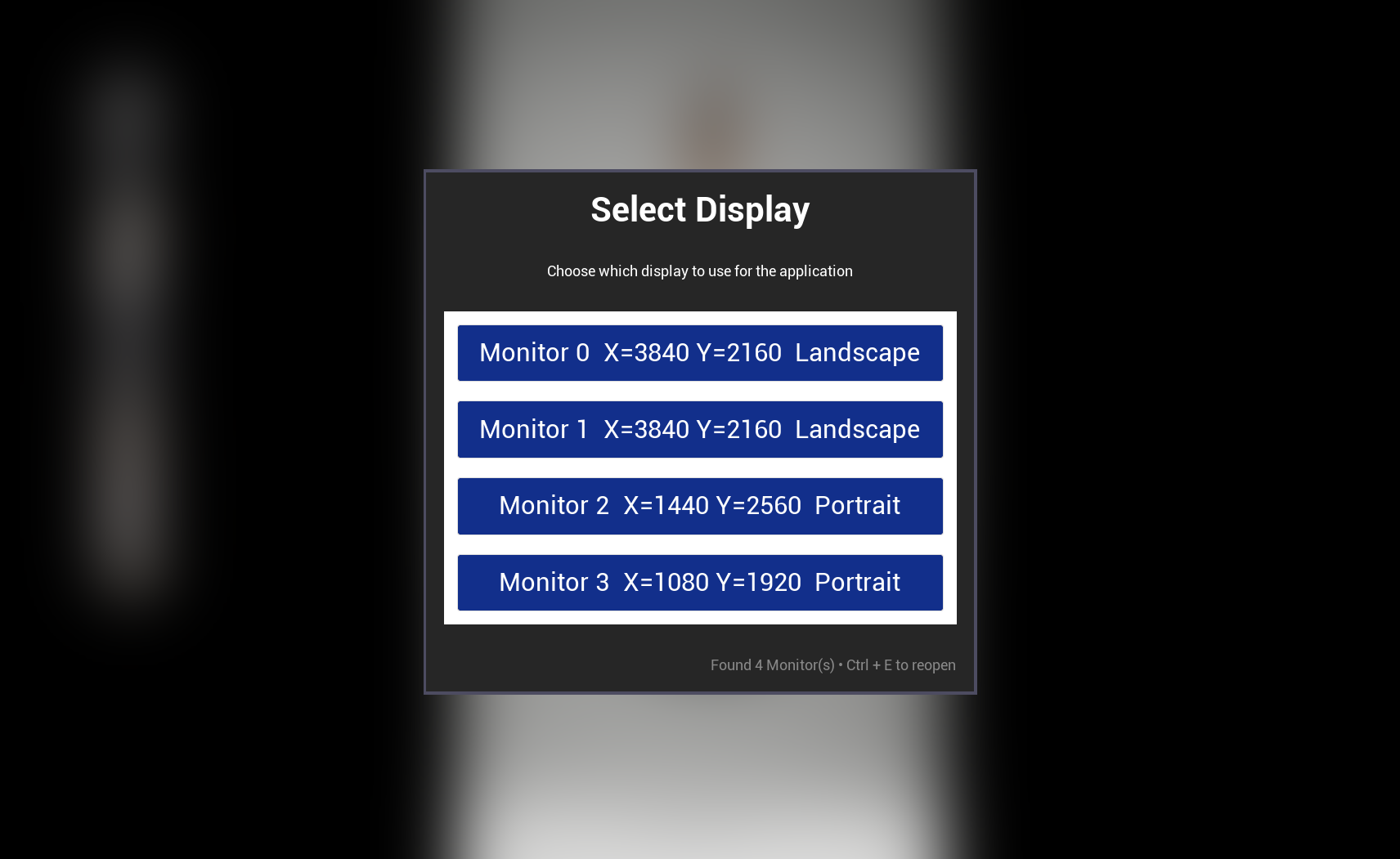
While in the editor it can be useful to have a preview window on your HLD, to do this you can choose the `new PIE (play in editor) window` option under the `play mode and settings` menu. From there you can use the built in UI to change the monitor the application will run on.
#### **Windowing**
{% hint style="info" %}
**Keyboard shortcuts**
If necessary, you can use Ctrl + E to re-open the monitor selection UI. This allows you to switch the monitor placement in the event a monitor is disconnected while the app is running.
{% endhint %}
We provide a collection of scripts to make the windowing process simple for HLD systems, whether you're in the editor or running a built version of your application.
**MonitorUtils.cpp** - a simple CPP interface that exposes basic monitor placement functions to blueprints
**DataHandler** - a blueprint object for orchestrating the UI's list view for monitor selection
**ListItem** - a widget blueprint that represents a single monitor in the UI's listview.
**Window Manager** - a widget blueprint that contains a UI for selecting which monitor you'd like the application to run on.
The Window manager widget is spawned in the level blueprint. This is also where we set the target blend mode for the cineCameraActor we use for the HLD.